Out and About WordPress Blog Content Tweaks Just with iPhone Tutorial
Today, we’re calling on the “out and about away from the MacBook Air for some day(s)” themes presented in …
- Bluetooth iPad Keyboard and Case Document Editing Tutorial … and combining them with yesterday’s …
- Command Line History By Date Tutorial
… themes, and this time, involving an iPhone, rather than an iPad, maintaining this WordPress.org blog content without the sftp of the MacBook Air environment.
You see, down the bottom of any of these blog posts there is this “if you like this, try this” section we occasionally forget to modify for each individual blog post, as the way the Landing Page clicks/taps get you to the appropriate new content via that Post ID we change in that section (then WordPress permalinks come into play helping users not need to know this Post ID number). If we’ve forgotten, and we tweak to this into the day, here, no crontab/curl arrangement saves the day after adjusting the Post ID business. We have this long command line set of commands in the Terminal section of our cPanel part to out AlmaLinux Apache/PHP/MySql hosting WHM software (effectively doing what the crontab/curl scheduled automation would do early into an AEST day), and that is easy on the MacBook Air, but …
Can we manage it out and about just with an iPhone and accomodation WiFi?
Keep you hair on … we can! Yayyyyyyy! But we had to learn some new Linux related ideas that revolve around the “history” command … again!
The thing is, the greatest pain, potentially, tweaking the WordPress content just with an iPhone, at least for us, is the thought of ever having to “keyboard type” in any passwords, and below, combinations of Face Recognition and “saved username/passwords” helps … otherwise we may have let it go, performing …
- on the iPhone go to Settings -> WiFi to connect to accomodation WiFi …
- log in to this WordPress blog as the “admin” user … case in point …
- adjust content regarding those Post ID references down the bottom of the content … bit onerous, but not too bad …
- tap Save button … easy peasy … ready if happy now for next day’s crontab/curl to put things right regarding Landing Page clicking/tapping … but if needing everything now, we …
- logged into our WHM cPanel environment …
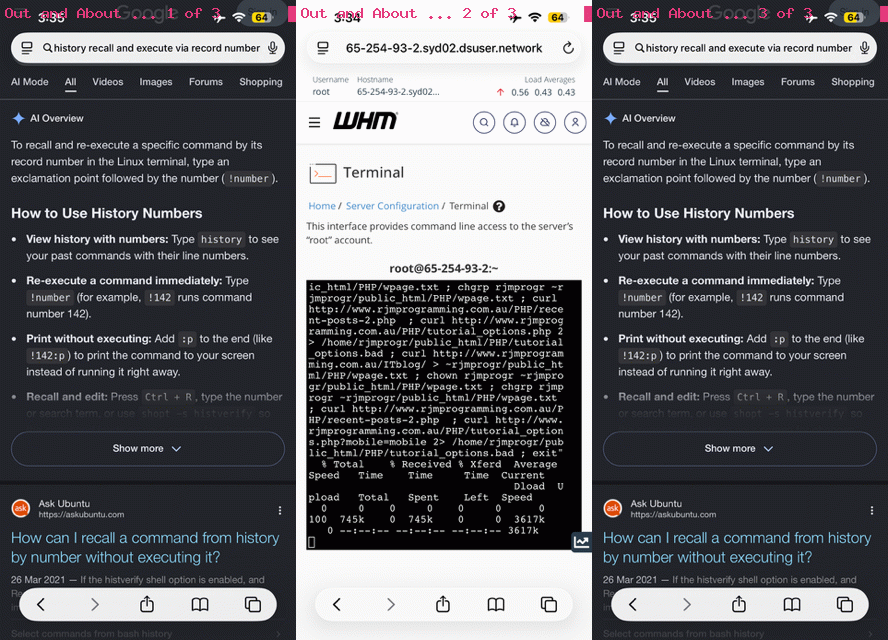
- tapped Terminal link … taking us to the RJM Programming domain’s web server command line … and because we’d done this same set of commands in the past …
-
history | grep "exit"
… was able to give us a number at the left, we’re going to say was “412” below, of great use … - rather than typing this great huge command line set of commands from the iPhone Terminal session …
history recall and execute via record number
… taught us, regarding “Linux talk” …To recall and execute a specific command from your shell history by its record number, type an exclamation mark followed by the number (like !123) and press Enter.
How to Use Numbered History
• Find the number: Type history to see a numbered list of your past commands.
• Execute immediately: Type ![record_number] (for example, !450) to run that exact command right away.
• Preview or edit first: Add :p (like !450:p) to print the command safely without running it, then use your Up Arrow to bring it to your prompt for changes.
• Safe verification: Turn on shopt -s histverify in your configuration so typing !450 loads the command into your editing buffer instead of running it immediately.… so we went …
-
!412:p
… as a sanity check … before going … when seeing it was okay … doh?! … -
!412
… to seal the deal - logout of whatever needs logging out of
Previous relevant Bluetooth iPad Keyboard and Case Document Editing Tutorial is shown below.
Bluetooth iPad Keyboard and Case Document Editing Tutorial
Yesterday’s Bluetooth iPad Keyboard and Case Tutorial had a …
- hardware and networking discussion … emphasis … but today we extend that to a …
- software discussion …
… to make all these ideas become much more impactive and useful, starting with some discussion whereby an iOS iPad user may be able to …
- edit … and …
- share …
- documents
… such as in Microsoft Word or RTF formats and join into “Export” outputs such as PDF.
We were put onto trying an iOS rendition of the macOS Pages product we talked about with Apple Pages Word Processor Primer Tutorial.
Now, perhaps you don’t associate iOS devices as document storers, on their own storage, but there is the native iOS Files app pointing you to storage places that might contain such editable and shareable documents in …
- On My iPad
- Downloads
- iCloud Drive
- Recently Deleted
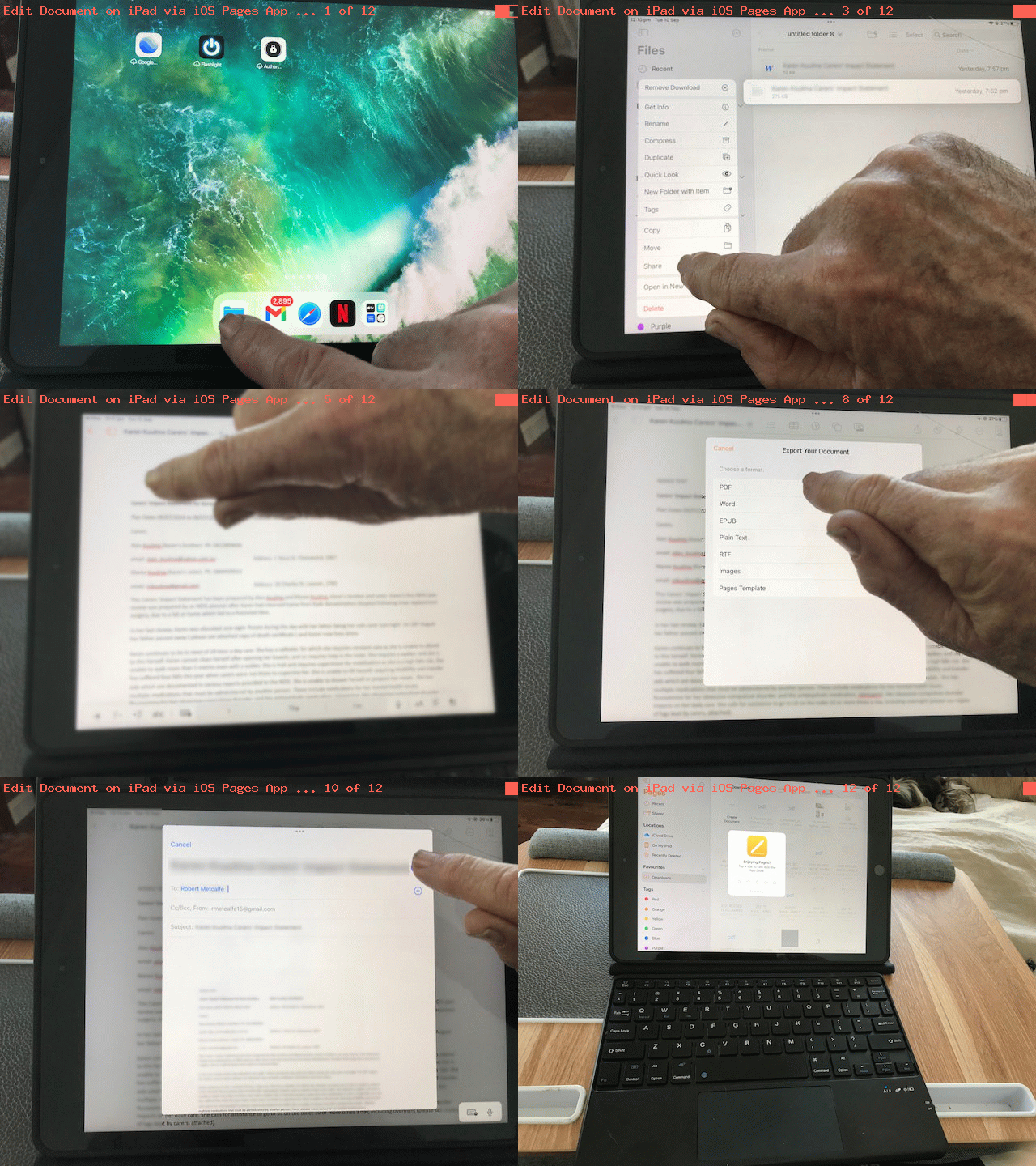
… places, the top suggestion featuring in today’s animated GIF procedure example that underscores …
- Tap Files app icon …
- Tap for On My iPad …
- Hold finger on a document to edit until a menu appears to the left … and on that menu …
- Tap Share … bringing up the commonly found Share options …
- Likely to the right of icon options will be a Pages icon (assuming you have installed it from the Apple Store) that we want you to tap …
- If the Edit functionality options are not showing but an Edit button is showing tap that button now …
- Edit away …
- Tap Share icon … and we decided to …
- Tap Export and Send
… to continue on with the editing cycle you have going for this document. Remembering all this is going on with a touch device, cute, huh?!
Previous relevant Bluetooth iPad Keyboard and Case Tutorial is shown below.
Bluetooth iPad Keyboard and Case Tutorial
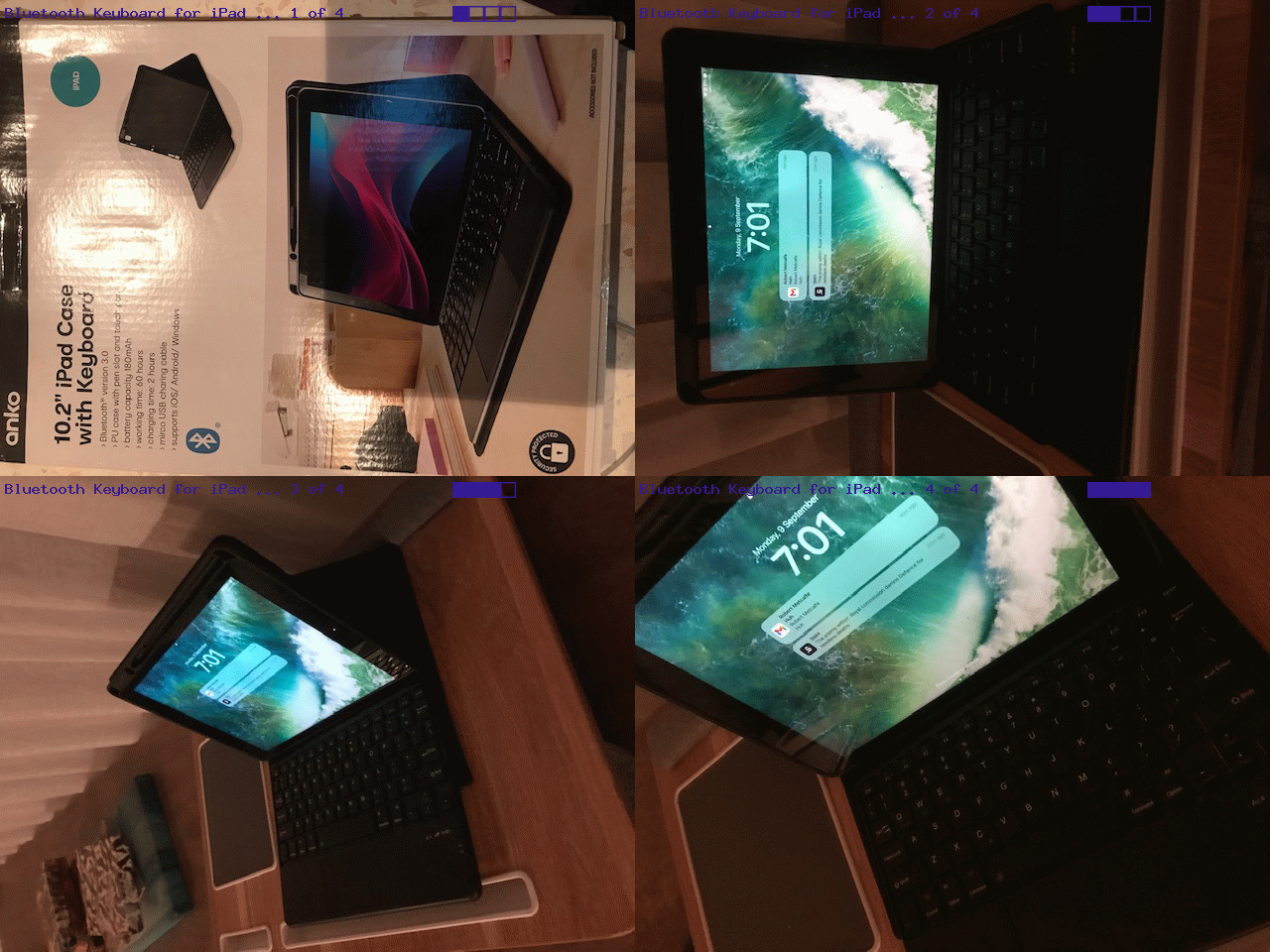
What came to mind trying out a pretty simple but effective “iPad Case with Keyboard” product the other day was Tablet Run Web Server Blog PHP Tutorial, the scenario for which was that we had no laptop available and were constructing this blog’s content just with an iPad.
To us, at least, to even contemplate the publishing of content with even only a few paragraphs, assuming you can sort out the sftp needed to upload, we would want a Bluetooth Keyboard to come into the picture, along with the “tablet”, in our case an Apple iPad. We’ve talked about this before, and the other version was good too, but this product we’re talking about today, also tries, again, helping out the iPad, with a stand, for better viewing conditions and to better match that L shape a laptop can make for best work conditions.
On a day’s worth of use, we’d give it a big tick, as far as productivity improvements are concerned … minus that fifteen minutes working out that Fn-C got you to be able to pair the keyboard with the iPad up at …
Settings -> Bluetooth
Oh well!
Previous relevant Tablet Run Web Server Blog PHP Tutorial is shown below.
Tablet Run Web Server Blog PHP Tutorial
Mulling continues unabated, after yesterday’s Tablet Run Web Server Blog Follow Up Tutorial as shown below, over how feasible it is to run this blog from a tablet … like an iPad … by today, putting the arrangement to the test of doing some PHP software development with the iPad. Spoiler alert … you can, but it’s a bit more painful than for HTML work, and needs some preparation in advance … but would you want to long term? For me, it’s still “not so much”.
You may recall from yesterday’s work …
The pleasant surprise I hadn’t anticipated out of our steps below, to do it …
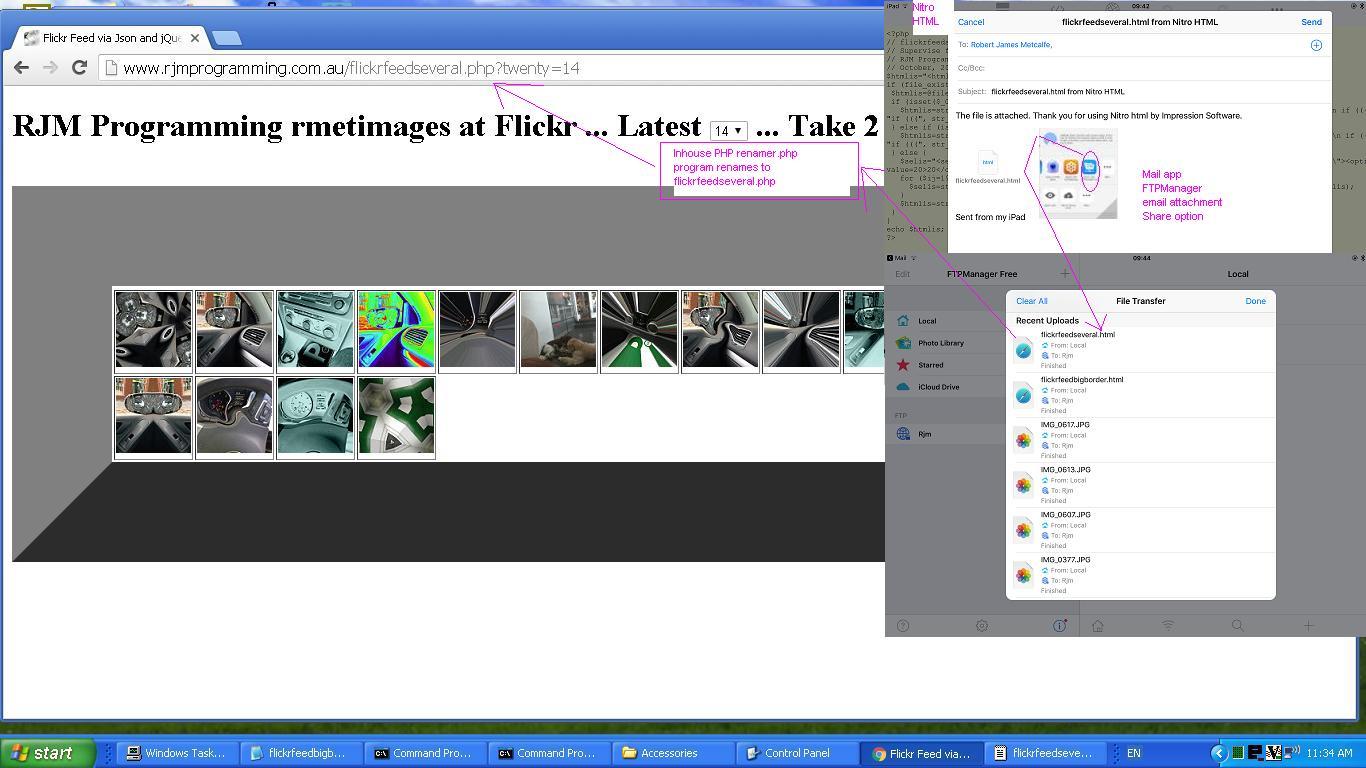
- Open Nitro HTML iPad mobile app and download some existant HTML “Random Flickr Feed Display” code from Random Images of Feed via Javascript JSON jQuery Tutorial …
- Reworked it a bit in Nitro HTML adding one of those big borders we “wakened up to” with Holes Web Application Primer Tutorial and some new Javascript window.open idea linked to work of Location Services iPad Camera Geolocation Jpeg Exif Tutorial
- Used “Save As” to give it the flickrfeedbigborder.html filename we ended up using (and Nitro HTML does not like non-alphanumeric characters by the way)
- Used “Email as Attachment” to email as attachment … doh!
- Open Mail app and tap/click into this email
- Lo and behold a Share option of the attachment of this email is an FTPManager app (s)FTP file transfer … yayyyyyy!
… was that FTPManager attachment Share option, in that last step above … brilliant!
… well … the only difference today is that the content of our new webpage contents is PHP … our Apache/PHP/MySql web server serverside programming language of choice.
Today, a curiosity of mine going back “forevvvvver” was resolved for me … don’t expect PHP housed in a web server file with an extension .htm or .html work the PHP logic, unless you change something bizarre in Apache’s httpd.conf or .htaccess arrangements, perhaps. So how does that fit with the iPad’s “Nitro HTML” app not allowing file extensions of .php “out of the box”. Our way around this today involves that “preparation in advance” that the iPad’s functionality, as we have it at the moment, won’t help you with. That solution is to have an inhouse (something like) renamer.php PHP webpage with password protection, at the very least, and more protections, please, as you think fit … because this is a functionality you slow down and think about long and hard first … can come to the rescue renaming the .html out of “Nitro HTML” app to .php … bearing in mind the “FTPManager” app “out of the box” has no renaming functionality.
So, what are we doing today to need PHP? We use PHP flickrfeedseveral.php to read the HTML of yesterday to turn the “20” in “Random Flickr Feed – Latest 20” to be variable … 20 or less.
You can try out the predominantly iPad inspired live run link, to see for yourself.
Previous relevant Tablet Run Web Server Blog Follow Up Tutorial is shown below.
Tablet Run Web Server Blog Follow Up Tutorial
We’ve continued our mulling, after yesterday’s Tablet Run Web Server Blog Primer Tutorial as shown below, over how feasible it is to run this blog from a tablet … like an iPad … by today, putting the arrangement to the test of doing some HTML software development with the iPad. Spoiler alert … you can … but would you want to long term? For me, not so much.
The pleasant surprise I hadn’t anticipated out of our steps below, to do it …
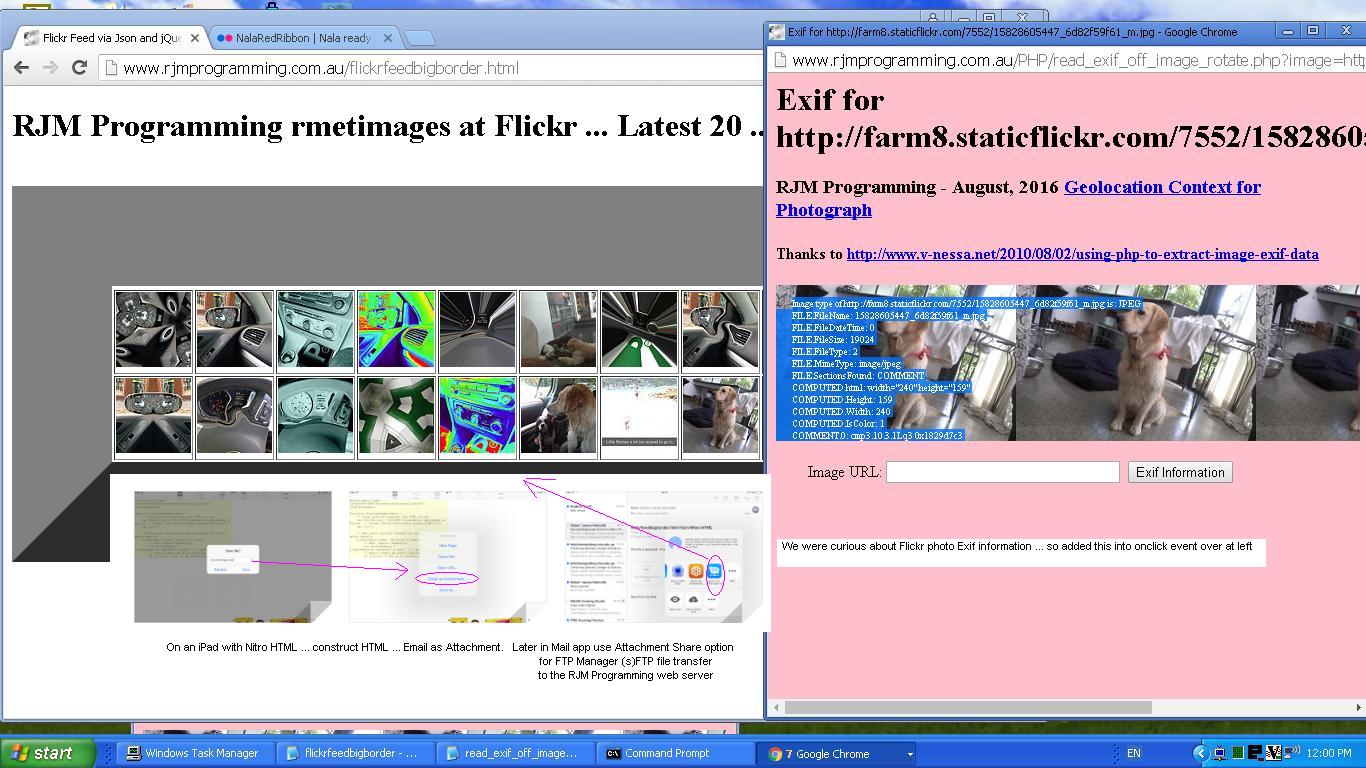
- Open Nitro HTML iPad mobile app and download some existant HTML “Random Flickr Feed Display” code from Random Images of Feed via Javascript JSON jQuery Tutorial …
- Reworked it a bit in Nitro HTML adding one of those big borders we “wakened up to” with Holes Web Application Primer Tutorial and some new Javascript window.open idea linked to work of Location Services iPad Camera Geolocation Jpeg Exif Tutorial
- Used “Save As” to give it the flickrfeedbigborder.html filename we ended up using (and Nitro HTML does not like non-alphanumeric characters by the way)
- Used “Email as Attachment” to email as attachment … doh!
- Open Mail app and tap/click into this email
- Lo and behold a Share option of the attachment of this email is an FTPManager app (s)FTP file transfer … yayyyyyy!
… was that FTPManager attachment Share option, in that last step above … brilliant!
So maybe you’d like to try the “fruits of the iPad’s labour” with this live run link, and hope to see you back soon.
Previous relevant Tablet Run Web Server Blog Primer Tutorial is shown below.
Tablet Run Web Server Blog Primer Tutorial
We’ve been mulling over how feasible it is to run this blog from a tablet … like an iPad … please don’t ask why? Sorry seems to be the hardest word.
There are two major reasons it is difficult with an iPad “out of the box”, but who says you have to live in a box. That was rhetorical.
Anyway, the two reasons are …
- the extreme pain of a native iPad keyboard “out of the box” … like to meet the person who doesn’t feel this when writing hand coded HTML, which is our wont hereabouts … oh, hello Mr Smith … oh, and you too Ms Smith … all right, that’s enough Cousin Smith … we don’t need your inferiority complex campaign thank you very much … no, I wasn’t thanking you … gheese … thinking on it, as painstaking as the really small keyboard buttons would be, to optionally have a mode of keyboard like QWERTY (sorry some people) would be nice as an option “out of the box” for hand coding HTML masochists
- the (s)FTP question of getting media and HTML over to our web server … though, if you don’t need to show code in your WordPress blog, maybe you could do away with no (s)FTP thoughts … though know for a fact you would be causing grief to neglected software code components
Now today you may detect a little flippancy, a little triumphalism even … but it won’t last … however, the reason is twofold … one hardware and one software … and a warm and fuzzy conjoined Goldilocks feeling of the porridge in between (that must be networking) … but we digress …
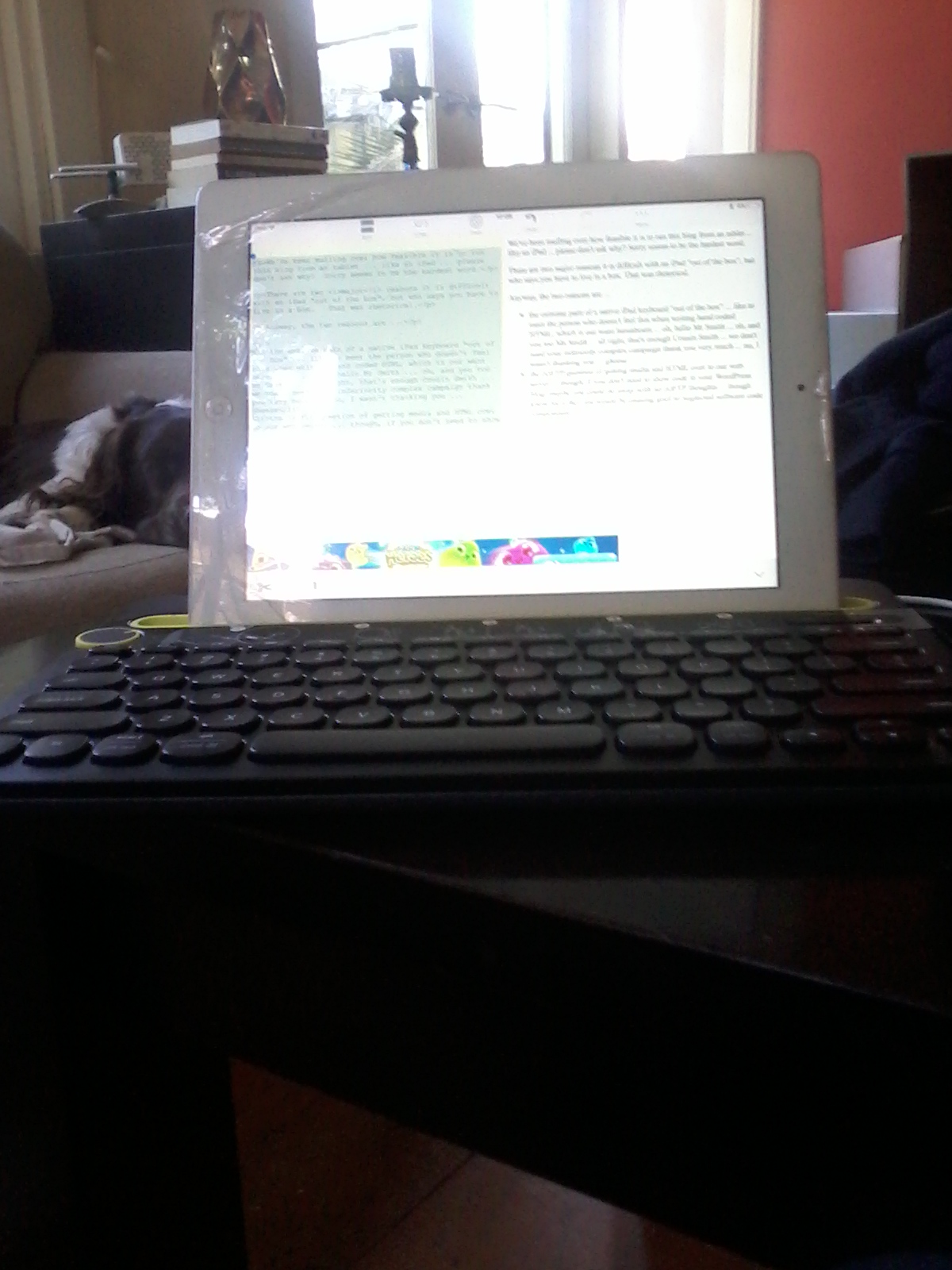
- hardware wise … and we’re sorry it cost something, but believe me, it could be worth it … we bought a Logitech K480 Multi-Device Bluetooth Keyboard … yayyyyyyyy! … no more scrambling around between keyboard modes looking for the < and >
- software wise … and we’re back to it costing nothing … we looked on Apple Store for “HTML editor” and looked at the first screen’s worth of free apps … there were 4 and favoured out of the four, at a first brief look, in “most liked order first” order …
- Nitro HTML … our blog posting today was written with it and the Bluetooth keyboard … so, thanks …
- HTML editor
- CodeMaster
- Ca
Nitro HTML caught my eye for its …
- email as attachment your HTML … and HTML editor for its …
- (s)FTP functionality
… especially so, with the latter, because it augments the excellent iPad app FTPManager free version we already have, which can help us (s)FTP over to our web server our Photos app file(s), but not HTML, at least in this free version we have hereabouts. Pay a little for FTP on the Go Pro app and this will handle text file (s)ftp transfers.
We’ve been typing for quite a few minutes now, and the “glow” hasn’t subsided, and though we still prefer the good ol’ MacBook Pro methods … well … if push comes to shove … maybe you could do more than I initially gave credit to running a web server via just a tablet … we’ll see.
Did you know?
Just before we “see” let’s “sense”. Before all this “blurb” above a huge thing you should not be scared of on a tablet if you are going to take on this “tablet only” blog approach, is to not be scared of the iPad’s “long hover” over (HTML) text “Select” option, because it is a crucial start to Copy/Paste operations on a tablet. And if you do lots of “long hover” over (HTML) text work, don’t be shy to start the “long hover” in the middle of a block of HTML to get a good spread with those initial positioners … you’ll see what I mean if/when you do a lot of Copy/Paste tablet work.
If this was interesting you may be interested in this too.
If this was interesting you may be interested in this too.
If this was interesting you may be interested in this too.
If this was interesting you may be interested in this too.
If this was interesting you may be interested in this too.
If this was interesting you may be interested in this too.