
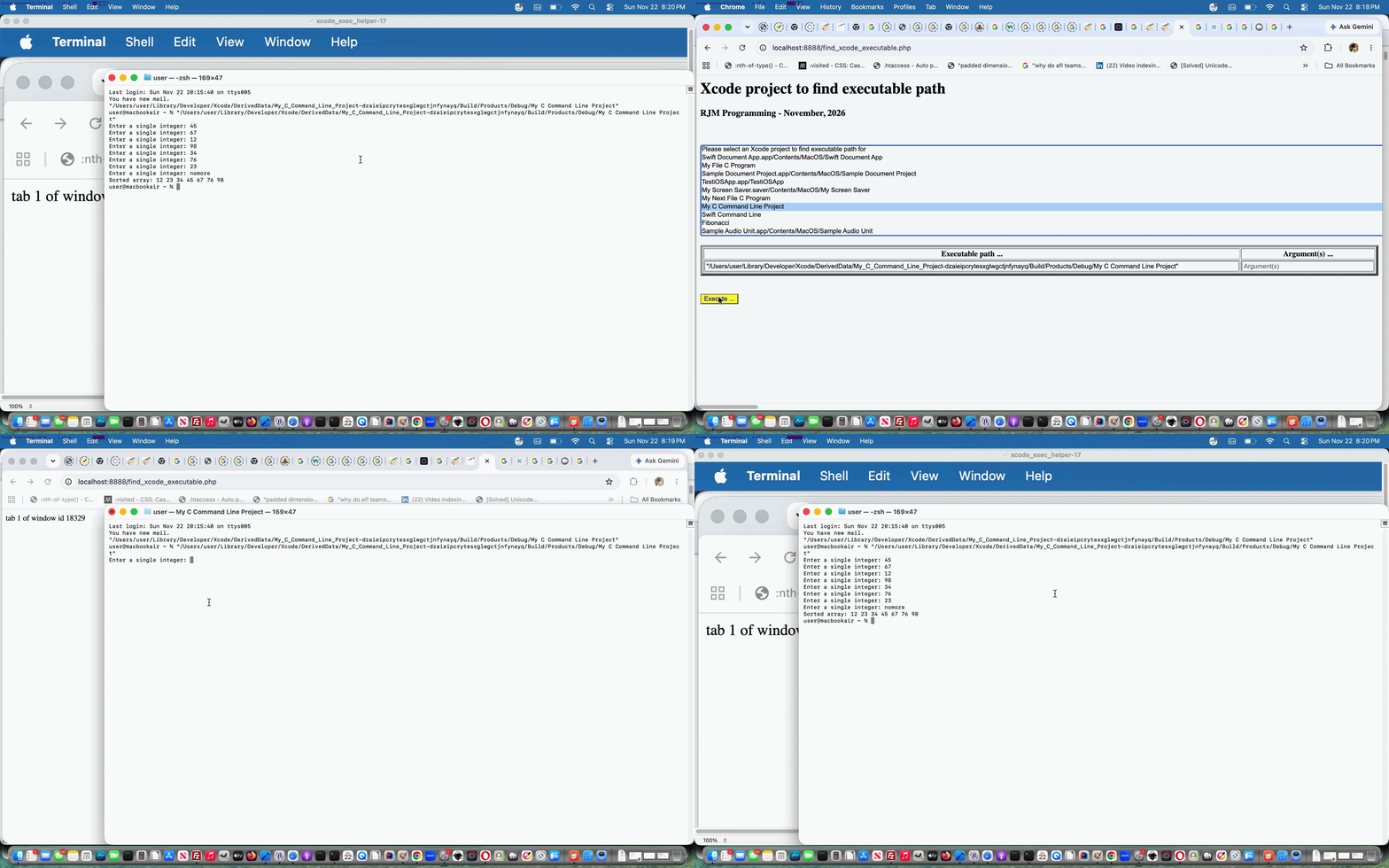
Xcode Executable Finding and Executing Tutorial
The Xcode IDE on macOS, as a desktop application, for …
Xcode -> New -> Project... -> macOS / Command Line Tool -> Product Name: [up to you] Language: C
… represents, perhaps, the simplest and immediately approachable Xcode Project combination to try. But even here, you will find it as easy as falling off a log to create an executable that “runs” within the Xcode IDE environment. But Xcode does a great job at making it hard for you to track down where, on your hard disk, it created the executable. And because we are very much “old school” from the command line days where paths to executables were known and a part of the mix for programmers to be totally au fait around, we’re going to write …
- using PHP server language
- under a macOS MAMP Apache/PHP local web server environment …
- following great advice of can a command line xcode command determine the executable path for an xcode project name? we base the logic around setting up command like …
xcodebuild -project YourProject.xcodeproj -scheme YourScheme -showBuildSettings | grep -E “^\s*(TARGET_BUILD_DIR|EXECUTABLE_PATH) =”
… exemplified by, for us …
xcodebuild -project "My Next File C Program.xcodeproj" -scheme "My Next File C Program" -showBuildSettings | grep -E "^\s*(TARGET_BUILD_DIR|EXECUTABLE_PATH) ="
… resulting in …2026-11-22 17:57:15.240 xcodebuild[30786:4838683] [MT] IDERunDestination: Supported platforms for the buildables in the current scheme is empty.
— xcodebuild: WARNING: Using the first of multiple matching destinations:
{ platform:macOS, arch:arm64, id:00008103-000328410EA2001E, name:My Mac }
{ platform:macOS, arch:x86_64, id:00008103-000328410EA2001E, name:My Mac }
{ platform:macOS, name:Any Mac }
EXECUTABLE_PATH = My Next File C Program
TARGET_BUILD_DIR = /Users/user/Library/Developer/Xcode/DerivedData/My_Next_File_C_Program-blfjoaxttlpyniaghlsxiantcafy/Build/Products/Debug
… as a means forward to help “unlock the secrets of the Xcode“!
From there, as many programmers will know, as soon as keyboard interactive entry gets to be involved with the execution of a compiled language (in our case C) program, starting with a web browser address bar, it’s really difficult to arrange up at the public RJM Programming, but here on macOS MAMP within an
http://localhost:8888/find_xcode_executable.php web browser address bar call we are allowed to code for PHP …
… (deemed a security threat up at the public RJM Programming web server) but which was our macOS MAMP pass through to …
- macOS Terminal desktop application …
- called to run our newly found Xcode C executable, like (with the C code used in C 2D Array via File Tutorial) via command like …
"/Users/user/Library/Developer/Xcode/DerivedData/My_C_Command_Line_Project-dzaieipcrytesxglwgctjnfynayq/Build/Products/Debug/My C Command Line Project"
… via passthru command calls like …
osascript -e 'tell application "Terminal" to do script "\"/Users/user/Library/Developer/Xcode/DerivedData/My_C_Command_Line_Project-dzaieipcrytesxglwgctjnfynayq/Build/Products/Debug/My C Command Line Project\""'
… allowing for interactive entry within that, perhaps new, Terminal window (not necessarily the top window) being a possibility.
And so, day one here, got us to our find_xcode_executable.php proof of concept first draft for this Xcode innards understanding helper web application we run around here up at the address bar of a web browser, and on from there, depending on where the user takes it.
Previous relevant C 2D Array via File Tutorial is shown below.
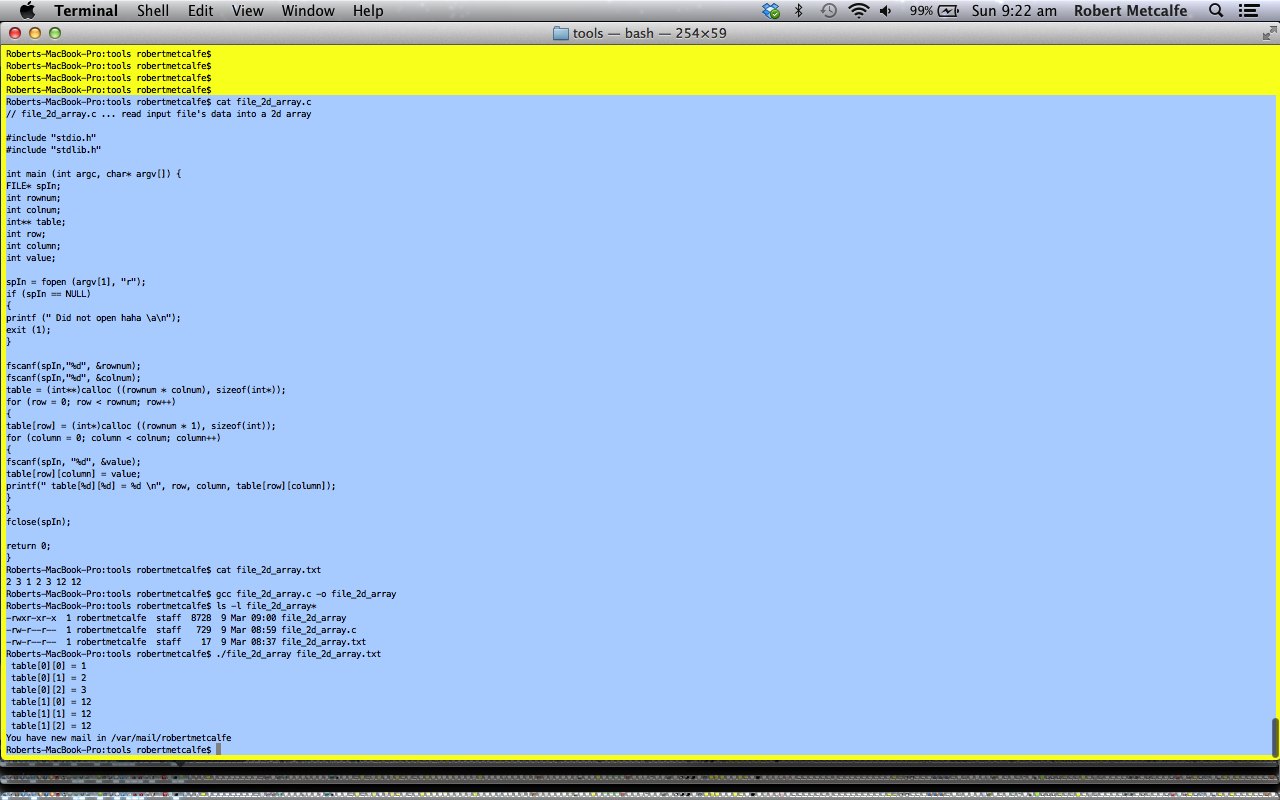
C 2D Array via File Tutorial
You don’t have to use an IDE to do C programming. There is Digital Mars C as an example of that. We have talked about the Xcode command line tools before, that frees the gcc compiler to (also) be a command line tool to write C programs from the command line separate to any IDE usage.
So it is today with this tutorial reading a file of numbers that define the workings of a 2D int array the program requires, inspired by this (old) Yahoo Answers question.
We use stdlib.h’s memory management function calloc to handle the memory management here. The use of calloc, malloc and realloc can aid with dynamically changeable arrangements with your C program’s memory management, and you may be interested in the related previous Xcode Debug C Strings Program Tutorial as shown below.
So feel free to download the C programming source code here and rename it to file_2d_array.c
Hope you enjoy this tutorial showing you some command line C gcc compilation work.
Roberts-MacBook-Pro:tools robertmetcalfe$ cat file_2d_array.c

// file_2d_array.c ... read input file's data into a 2d array

#include "stdio.h"

#include "stdlib.h"

int main (int argc, char* argv[]) {

FILE* spIn;

int rownum;

int colnum;

int** table;

int row;

int column;

int value;

spIn = fopen (argv[1], "r");

if (spIn == NULL)

{

printf (" Did not open haha an");

exit (1);

}

fscanf(spIn,"%d", &rownum);

fscanf(spIn,"%d", &colnum);

table = (int**)calloc ((rownum * colnum), sizeof(int*));

for (row = 0; row < rownum; row++)

{

table[row] = (int*)calloc ((rownum * 1), sizeof(int));

for (column = 0; column < colnum; column++)

{

fscanf(spIn, "%d", &value);

table[row][column] = value;

printf(" table[%d][%d] = %d n", row, column, table[row][column]);

}

}

fclose(spIn);

return 0;

}

Roberts-MacBook-Pro:tools robertmetcalfe$ cat file_2d_array.txt

2 3 1 2 3 12 12

Roberts-MacBook-Pro:tools robertmetcalfe$ gcc file_2d_array.c -o file_2d_array

Roberts-MacBook-Pro:tools robertmetcalfe$ ls -l file_2d_array*

-rwxr-xr-x  1 robertmetcalfe  staff  8728  9 Mar 09:00 file_2d_array

-rw-r--r--  1 robertmetcalfe  staff   729  9 Mar 08:59 file_2d_array.c

-rw-r--r--  1 robertmetcalfe  staff    17  9 Mar 08:37 file_2d_array.txt

Roberts-MacBook-Pro:tools robertmetcalfe$ ./file_2d_array file_2d_array.txt

 table[0][0] = 1

 table[0][1] = 2

 table[0][2] = 3

 table[1][0] = 12

 table[1][1] = 12

 table[1][2] = 12

Roberts-MacBook-Pro:tools robertmetcalfe$
A really helpful tutorial for code above is shown here … thanks.
Previous Xcode Debug C Strings Program Tutorial is shown below.
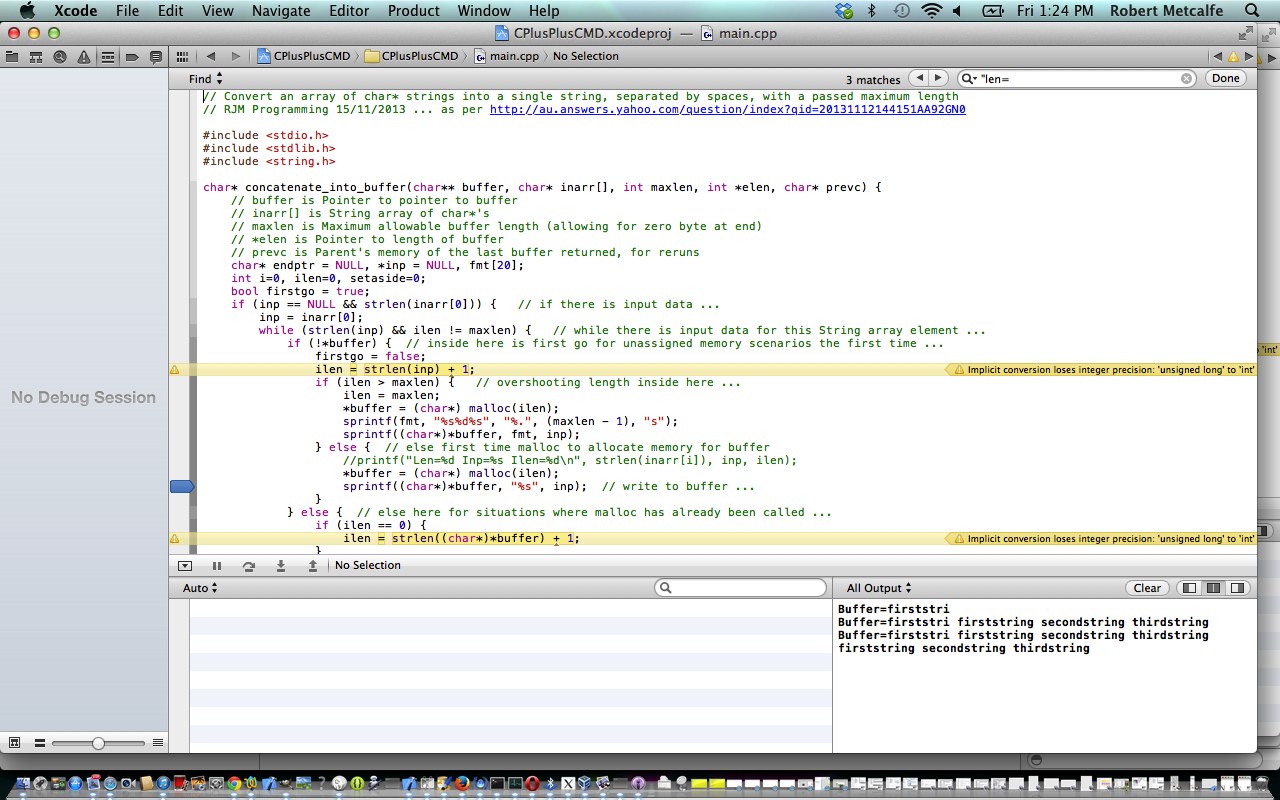
Xcode Debug C Strings Program Tutorial
Have a bit of an esoteric C programming scenario today, and because it is esoteric, and some or all of you may fall asleep, am also going to show you how to debug in Xcode … and only now just realized with the podcast of this tutorial that we went, on a Mac, control-command-Y a lot and should have, instead, shown you this in menu manipulation terms as Product->Debug->Continue … anyway, if you get into this, you’ll know what is going on.
Okay, so the C scenario in Xcode is a bit esoteric, as sometimes happens when you are answering “a brief” (a Yahoo Answers brief). The brief was not to use strcat in the making of a single string buffer from an array of zero-byte terminated char* strings in an array, with an added stipulation of a maximum string buffer length. Sounds simple, and it is if you use strcat and/or global strings, but my understanding of the brief would be that global variables will be frowned upon, as a lot of programmers will tell you. Mind you, personally, global strings are not a problem for me. Not using global strings and not using strcat, and making this work in a self-sufficient single function is quite interesting, and basically that is what we do here with this tutorial, via memory management using malloc & realloc.
So feel free to download the Xcode C programming source code here and rename it to main.cpp (or main.c … is pretty conservative in its construction … probably would work with Digital Mars C).
Hope you enjoy this tutorial showing you some cute Xcode debugging functionality.
If this was interesting you may be interested in this too.
If this was interesting you may be interested in this too.
If this was interesting you may be interested in this too.




A fascinating technical exploration of video commentary timing and SubRip subtitle synchronization. In modern video pipelines, harmonizing visual frame duration with voiceover cadence is often where most editing effort goes. Seeing the programmatic breakdown of timestamped collaboration adds wonderful depth to media preparation tutorials. Excellent technical insight.