
Mac iTunes Burn and Rip Primer Tutorial
Today’s blog posting is about Mac OS X optical disc Burn and Rip techniques to copy audio content to a CD-R compact disc via …
$ drutil info

 Vendor   Product           Rev

 HL-DT-ST DVDRW  GS41N      UA04


   Interconnect: ATAPI

   SupportLevel: Unsupported

   Profile Path: None

          Cache: 768k

       CD-Write: -R, -RW, BUFE, CDText, Test, IndexPts, ISRC

      DVD-Write: -R, -R DL, -RW, +R, +R DL, +RW, BUFE, Test

     Strategies: CD-TAO, CD-SAO, CD-Raw, DVD-DAO


$
… the MacBook Pro optical disc device as above, and Mac OS X’s desktop application iTunes (though we could have done it, more painfully, with command line “drutil” mentioned above).
The resultant CD created this way was readable in our Volkswagen Golf’s media player, as you can see in the last slides of today’s PDF slideshow presentation, showing the visuals for some steps below …
- find your blank CD-R (or other) digital vinyl removable disc (ours had 700mB capacity)
- find your MacBook Pro with a suitable optical disk reader (and writer … “burn”)
- check this at Mac OS X Terminal command line, via …
drutil info
- eject any existant disk in the drive, via Mac OS X Finder, as required
- insert your blank CD into drive …
- Finder comes up to inform of insertion of a blank CD and we select, out of the options shown …
- Open iTunes …
- iTunes desktop application starts up to inform of insertion of a blank CD and offers …
- File -> Burn Playlist to Disc
- File -> New -> Playlist
… of which we wanted the latter …
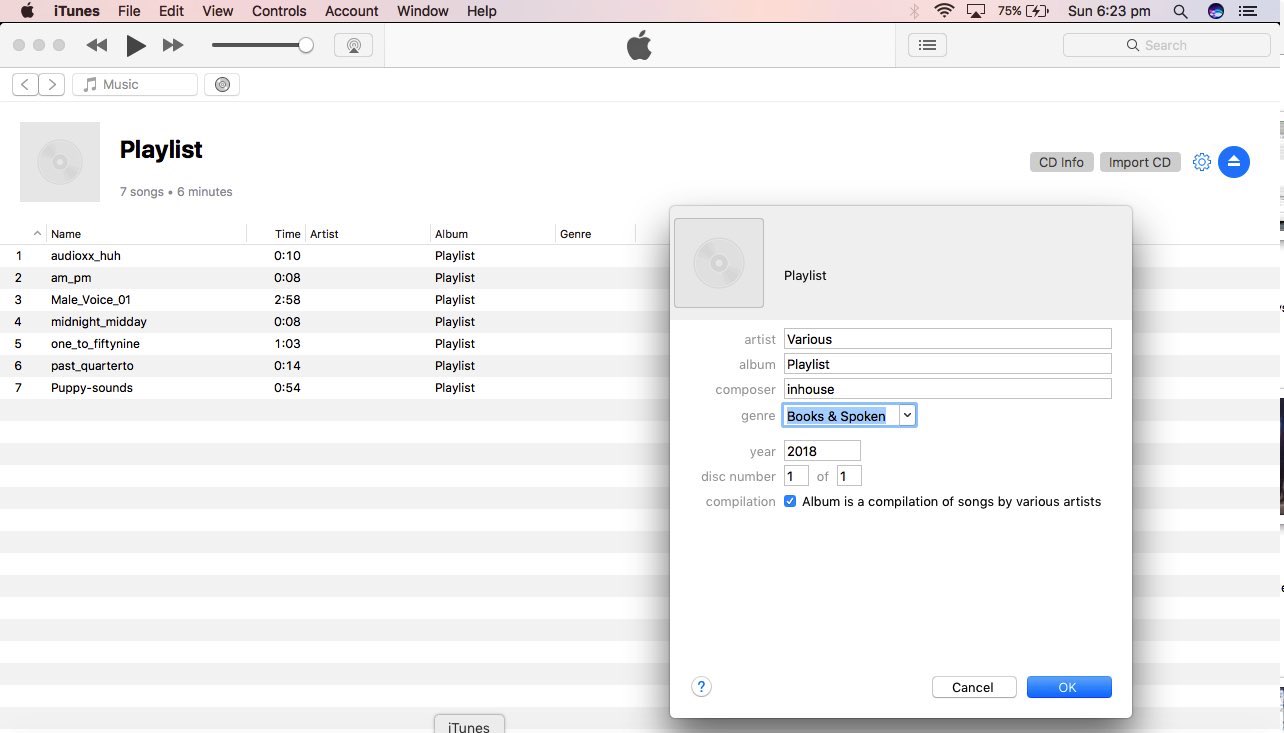
- we had a chance but didn’t rename the resultant newly created playlist “Playlist”
- we did a series of drag and drops of audio files from a Finder window into iTunes “Playlist” playlist folder …
- two finger gesture off “Playlist” playlist folder brought up option “Burn Playlist to Disc” which we selected once all files we wanted were contained within the “Playlist” iTunes playlist …
- selecting Disc Format “Audio CD”
- it’s optional to click “CD Info” button and fill in more information about the CD just “Burnt”
- we could have ejected the CD via iTunes, but we did the same thing in Finder
- we reinserted the CD
- iTunes desktop application starts up to offer the “Rip” operation of “Importing the CD” into the iTunes library, and though this is overkill, we did this to see that this “Rip” could work with an independently introduced CD from some other source … imports typically occur 5 or 6 times faster than playing the CD at normal speed
- we then clicked the Play left arrow to play the CD normally from within iTunes
- we then ejected the CD using the iTunes eject icon
- we then took that CD to the Volkswagen Golf, setting its media player to Media, inserting the CD (disc) we’d created above, to verify that it played okay that way
Perhaps some other “removable media” thoughts with Mac and Linux type commands (Mac OS X is actually a BSD based operating system command line) can be seen at Mac Linux Removable Media Primer Tutorial if you are interested here.
Happy listening!
Previous relevant Mac Linux Removable Media Primer Tutorial is shown below.
Mac Linux Removable Media Primer Tutorial
Today’s tutorial is as much about the nominal title “Mac Linux Removable Media Primer Tutorial” as it is about ‘The Making of “Mac Linux Removable Media Primer Tutorial”‘.
Regarding “Mac Linux Removable Media Primer Tutorial” we visit (and see a Mac Finder view of):
- Plug and Play on a Mac laptop (if something is incompatible the system does not respond to the removable media as with our LiteOn DVD player (whose software (drivers) work with Windows))
- df -k
- diskutil unmount “[Volume-Name]”
- ls -clt “[Volume-Name]” | more
Regarding ‘The Making of “Mac Linux Removable Media Primer Tutorial”‘ we see:
- iPad Camera creation of photographs of Mac laptop screenshots of Mac OS X application Terminal Linux removable media view … as alternative to Grab (as talked about with After Screen Capture Primer Tutorial … point being that with this tutorial it would be good to photograph the Mac laptop and its surrounding peripherals (ie. removable media) … hence the use of the iPad camera)
- iPad sync to Mac laptop via white lead … pans out to be much more straightforward than emailing several images from an iPad as a series of attachments in an email … no young laughter here, please
- iTunes method of ejecting connection between iPad and Mac laptop
- iPhoto event creation
- iPhoto Slideshow display
- iMovie Event creation
- iMovie Event based movie creation
- iMovie movie share to YouTube
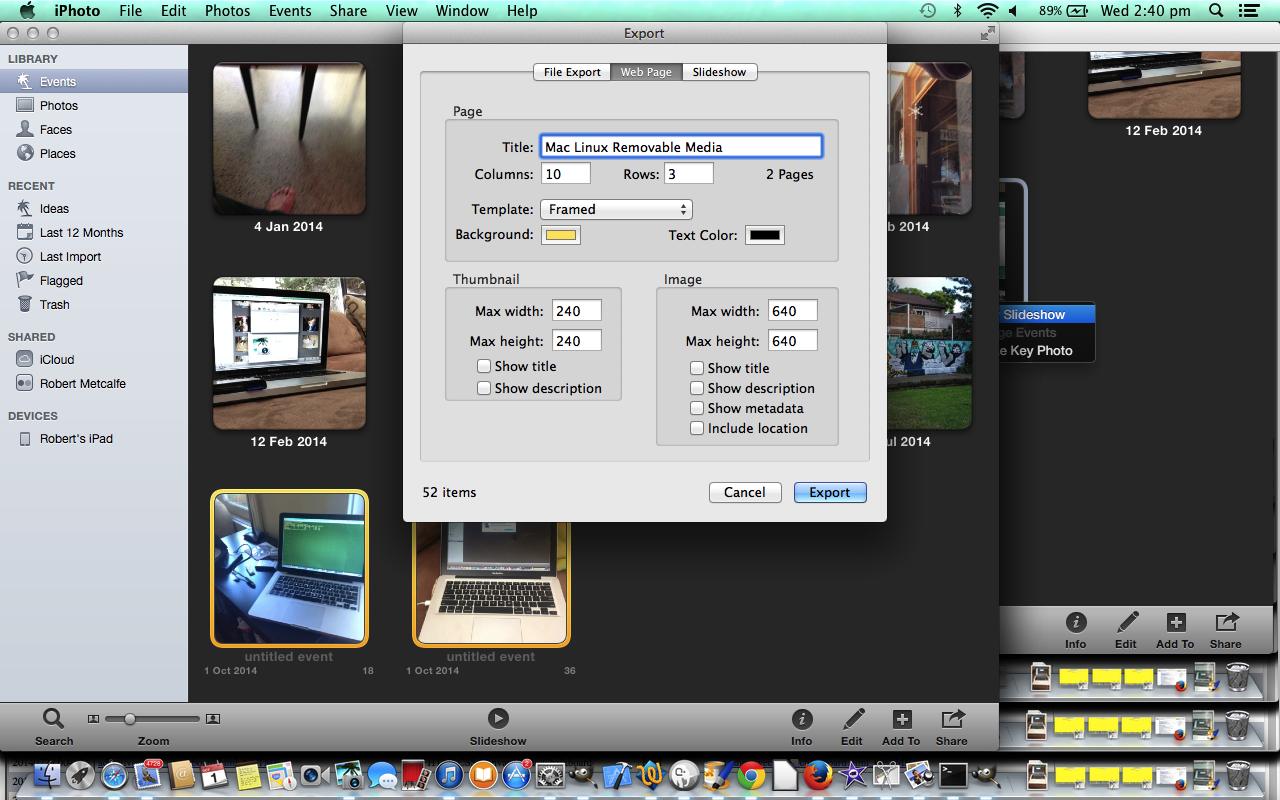
- iPhoto Webpage export … alternative slideshow idea
- Mac Linux Removable Media … YouTube video created
Hope you get some ideas out of today’s tutorial which resulted in the YouTube video Mac Linux Removable Media.
If this was interesting you may be interested in this too.
If this was interesting you may be interested in this too.




I like the single-row radio-play approach for keeping the controls compact while still making each selection clear. When I’m checking a calculation alongside a tutorial, I use StepStat to see the intermediate steps; how do you handle the layout when the playlist gets much longer?