

QuickTime Player Camera Filters Recording Primer Tutorial
Is QuickTime Player macOS desktop app any good?
Do fish swim? Do cassowaries rumble? Apparently.
We wondered, with some of the same themes as YouTube iPhone Screen Recording via QuickTime Player Primer Tutorial, whether we could show a faux animated GIF rendition of …
- an iPhone
- Camera app …
- six dots menu …
- Filters …
- run your finger through them a bit like that piano rendition fancy ending to a concert or song
Can a mere mortal share this? Well, if you have …
- an iPhone
- Camera app …
- a macOS MacBook Air (perhaps)
- QuickTime Player desktop app
- Apple white lead connected between the two
- in QuickTime Player … File -> New Movie Recording
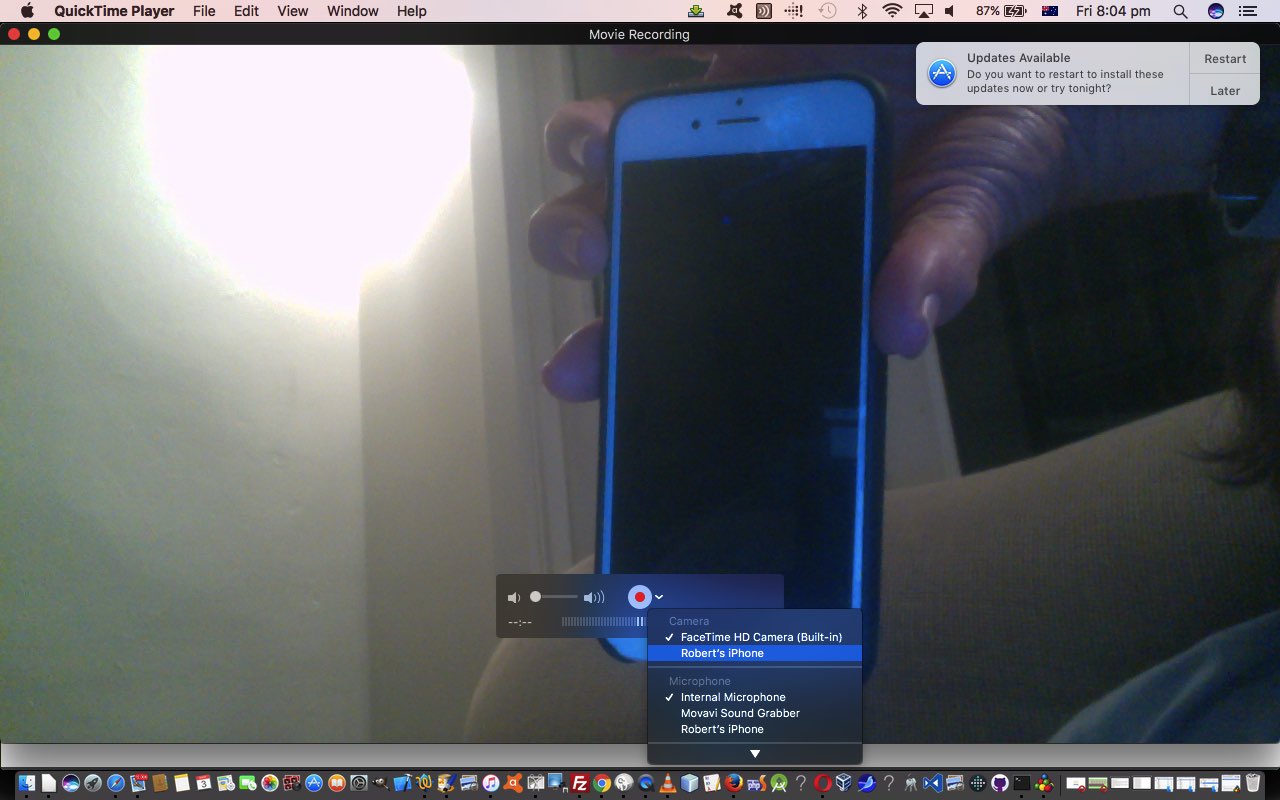
- at dropdown next to Record button select the appropriate iPhone streaming (is it “channel”?)
- in Camera app get to six dots menu …
- Filters …
- in QuickTime Player click Record of “run your finger through them a bit like that piano rendition fancy ending to a concert or song” …
- when finished use File -> Export As … a choice … exports to *.mov … and then …
- at Terminal macOS app type in (for us) …
ffmpeg -i camera_filters.mov camera_filters.mp4
- upload to public web server at RJM Programming website as per …
? And if you’ll forgive today’s obsession, going along with the work, from … Michael Bublé’s … It’s Time album … Home … Softly As I Leave You.
Previous relevant YouTube iPhone Screen Recording via QuickTime Player Primer Tutorial is shown below.
YouTube iPhone Screen Recording via QuickTime Player Primer Tutorial
We’ve spoken before about the wonderful Mac OS X QuickTime Player application, and its use on a MacBook Pro, and its capabilities to upload videos to YouTube.
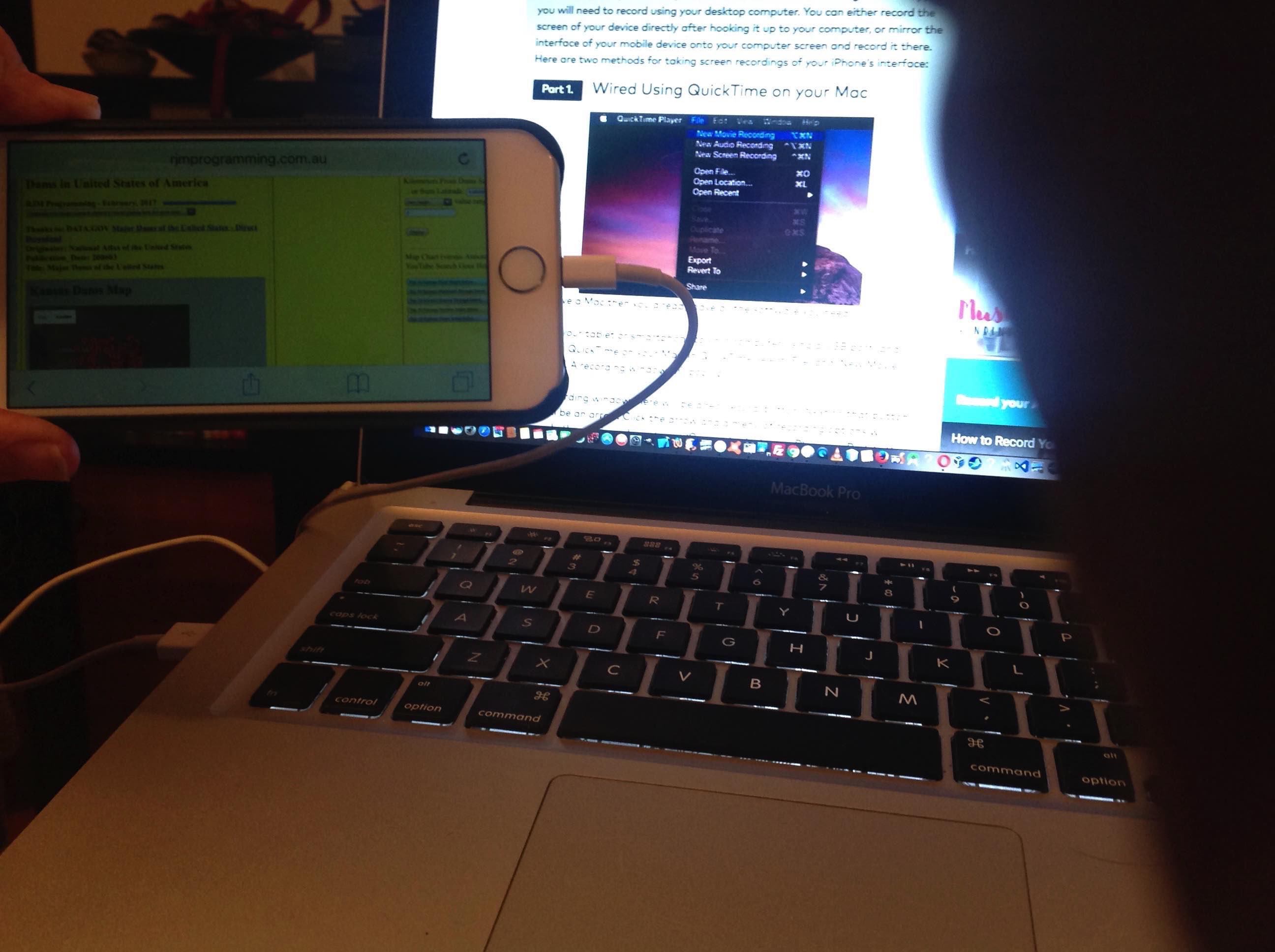
That’s all fine and good for Movie and Audio Recordings or Screen Capture Recordings related to the MacBook Pro, but did you know you can Screen Capture an iPhone (or iPad) by using a Mac USB white lead hooked up from the MacBook Pro to that other device, in our case an iPhone 6. So we record a session playing the Target Word Game you can read more about at PHP Target Word Game Mobile Friendly Tutorial.
We wanted to thank this great link, thanks, for the idea to use QuickTime Player for this job, never having used that arrow next to the red recording “blob” before. Makes me want to re-view The Blob in case I missed some useful subliminally embedded arrow.
We hope this is food for thought for you.
If this was interesting you may be interested in this too.
If this was interesting you may be interested in this too.