
Linux Watch Primer Tutorial
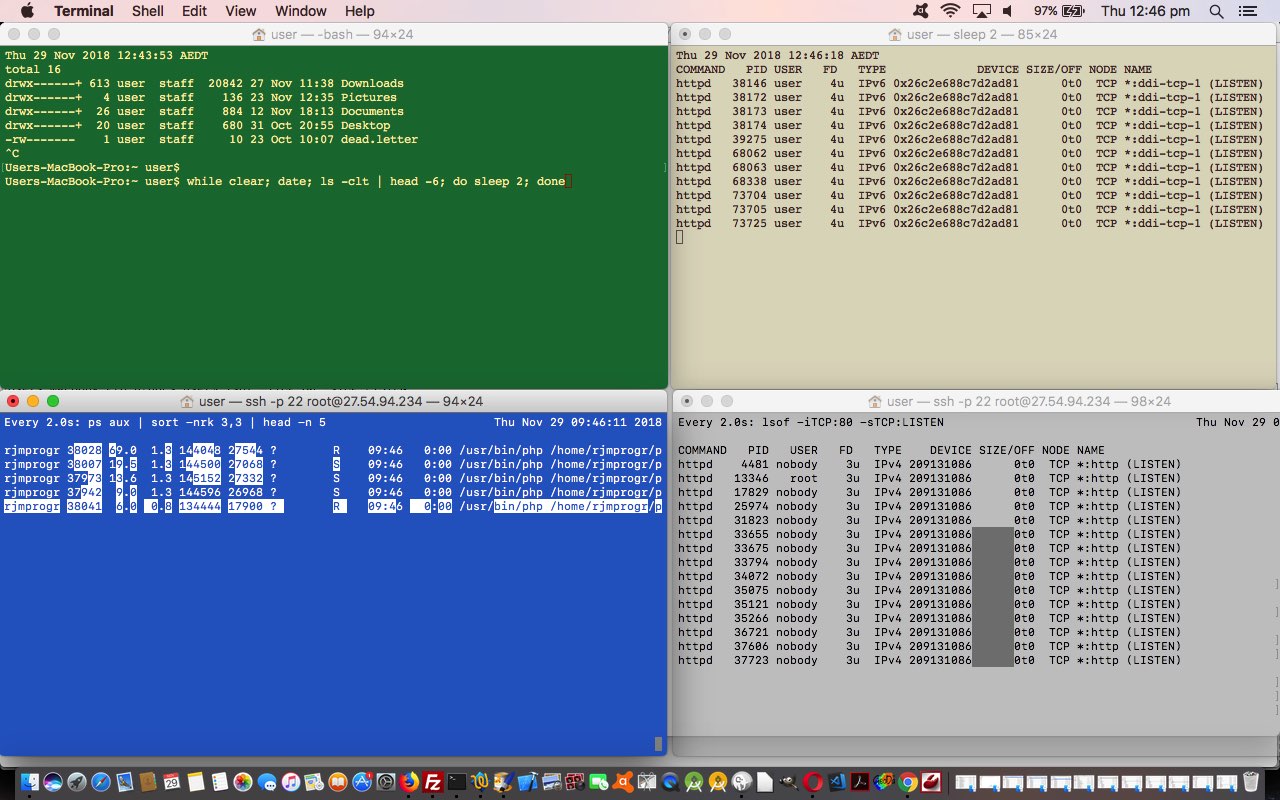
Command line work, when you are wanting to monitor something in real time, can be a tad repetitive, using the keyboard up arrow a lot in our case. But there is the …
- Linux command watch …
watch runs command repeatedly, displaying its output (the first screenfull). This allows you to watch the program output change over time. By default, the program is run every 2 seconds; use -n or –interval to specify a different interval.
… meaning for “df -h” (disk space) monitoring, for example …
watch -d "df -h"
… not on Mac OS X … but never fear … this useful link helped us to … - Mac OS X …
while clear; date; df -h; do sleep 2; done
… that you can stop with Ctrl-C keyboard press.
Other monitoring ideas (that you could substitute in for “df -h” above) could be …
- show current date and time
date
… up in right hand corner? … try …
while sleep 1;do tput sc;tput cup 0 $(($(tput cols)-29));date;tput rc;done &
- top 5 resource hungry processes
ps aux | sort -nrk 3,3 | head -n 5
… or perhaps try something like … top | head -17 | tail -5 - last 5 files in current folder
ls -clt | egrep -v '^t' | egrep -v '^d' | head -5
- disk space
df -k /
- disk inode count
df -i
- history of last logged in users
last
- outputs all the service/process using port 80
lsof -iTCP:80 -sTCP:LISTEN
… the list can go on and on.
We hope you find this tip helpful …
If this was interesting you may be interested in this too.



I like the single-row radio-play approach for keeping the controls compact while still making each selection clear. When I’m checking a calculation alongside a tutorial, I use StepStat to see the intermediate steps; how do you handle the layout when the playlist gets much longer?