
Windows 10 PDF Default Program Issue Primer Tutorial
Was surprised when I read in the February 2018 edition of PC & Tech Authority about the Windows 10 default program for PDFs being, by default, Microsoft Edge (web browser). So put that to the test on a Windows 10 desktop computer, and lo and behold, opening a PDF document via File Explorer with a double click did “fail to launch” because it was trying to open it with the Microsoft Edge web browser. On this same computer we had Adobe Reader XI installed (and … spoiler alert … it is that Adobe doesn’t register with Windows that it should be a default program option for PDFs) so we share with you what we did there, and a PDF presentation showing the steps below in pictures …
To make Adobe Reader XI the default program for opening PDF files, rather than Microsoft Edge, in Windows 10 …
- in the “Search Windows” bottom left textbox type “control panel”
- clicked “Default Programs” … in the presentation you’ll see us going up the garden path clicking “Set your default programs” but what would be better, and we eventually found out, is to …
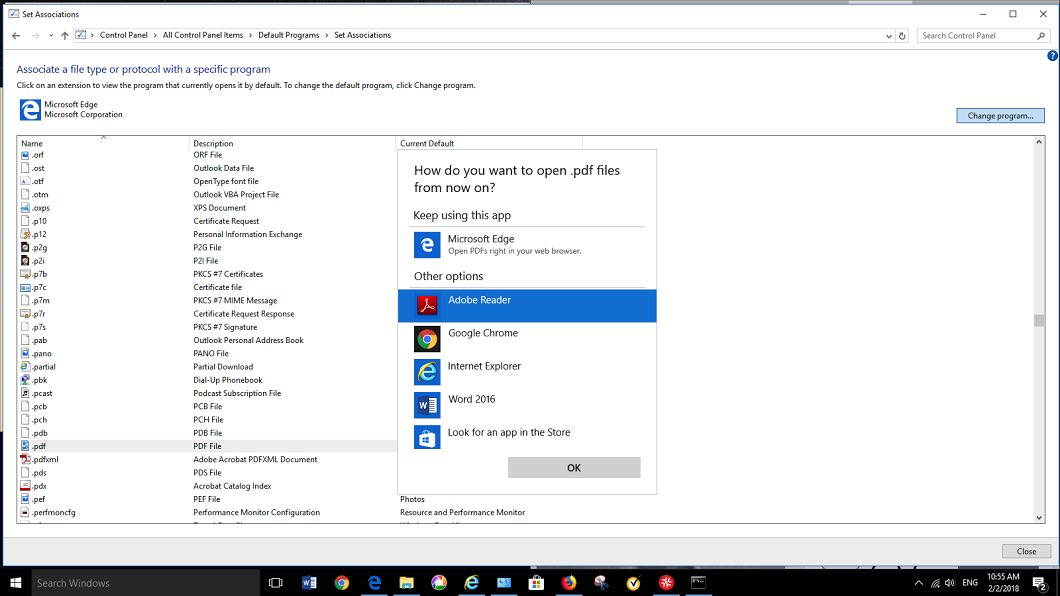
- click “Associate a file type or protocol with a program”
- highlighted Extension .pdf (with Current Default as Microsoft Edge) … and, up the top right …
- clicked “Change program…” button
- highlighted “Adobe Reader”
- click OK button
- highlighted Extension .pdf (now has Current Default as Adobe Reader)
… and now Adobe Reader is that File Reader icon’s default “Open” program, and does a good job opening it!
If this was interesting you may be interested in this too.



This is a helpful introduction to mind mapping, especially the explanation of how an unfamiliar .mm file can lead to discovering a practical visual-thinking tool. Mind maps are also useful for planning creative projects: I often map out a video’s key scenes, mood, pacing, and audio needs before production. Once that structure is clear, tools such as Flow Music can create AI background music for videos from a prompt, making it easier to match the soundtrack to each part of the visual plan. Thanks for sharing this accessible primer.